Note: This article was originally published in 2014. Some steps, commands, or software versions may have changed. Check the current Exchange 2013 documentation for the latest information.
In this step-by-step guide, you’ll learn install exchange server 2013 sp1. Exchange Server 2013 introduced a simplified architecture, site mailboxes, DLP policies, and integration with SharePoint and Lync.
How to: Install Exchange Server 2013 SP1
As usual every time you try to install a new version of Exchange Server there are new caveats and what you expect will take 30 minutes takes longer. This time around was no exception. I am still hoping the day will come the installer decides it is going to do what it takes to do everything automatically instead of giving you a list of errors of dependencies you are supposed to install on your own. Though there are good news with Exchange 2013 SP1: The Edge Transport Server is back! Surely lots of people out there are very excited about this; Fortunately for me I don’t care anymore. We are moving our entire infrastructure to the cloud as maintaining a server for just a few users is not worth the time and effort. Regardless we needed to deploy a server OnPremise to modify our hybrid configuration so we are including those details here.
O. Summary
Download Exchange Server 2013 SP1:
http://www.microsoft.com/en-us/download/details.aspx?id=41994
Install Prerequisites:
Install-WindowsFeature RSAT-ADDS Install-WindowsFeature AS-HTTP-Activation, Desktop-Experience, NET-Framework-45-Features, RPC-over-HTTP-proxy, RSAT-Clustering, RSAT-Clustering-CmdInterface, RSAT-Clustering-Mgmt, RSAT-Clustering-PowerShell, Web-Mgmt-Console, WAS-Process-Model, Web-Asp-Net45, Web-Basic-Auth, Web-Client-Auth, Web-Digest-Auth, Web-Dir-Browsing, Web-Dyn-Compression, Web-Http-Errors, Web-Http-Logging, Web-Http-Redirect, Web-Http-Tracing, Web-ISAPI-Ext, Web-ISAPI-Filter, Web-Lgcy-Mgmt-Console, Web-Metabase, Web-Mgmt-Console, Web-Mgmt-Service, Web-Net-Ext45, Web-Request-Monitor, Web-Server, Web-Stat-Compression, Web-Static-Content, Web-Windows-Auth, Web-WMI, Windows-Identity-Foundation Download and Install the “(http://www.microsoft.com/en-us/download/details.aspx?id=34992)“(http://www.microsoft.com/en-us/download/details.aspx?id=34992) Extract and Install Exchange Server 2013 SP1
I. Readiness Checks
As I mentioned there are new caveats or shall I say, goodies you need installed for Exchange Server to do its wonders. If you try to deploy it as is you might encounter a Prerequisite Analysis that shows a bunch of errors:
(http://kx.cloudingenium.com/wp-content/uploads/sites/3/2014/03/How-to-Install-Exchange-Server-2013-SP1-Readiness-Checks-Kx.CloudIngenium.com_.png)](http://kx.cloudingenium.com/wp-content/uploads/sites/3/2014/03/How-to-Install-Exchange-Server-2013-SP1-Readiness-Checks-Kx.CloudIngenium.com_.png)
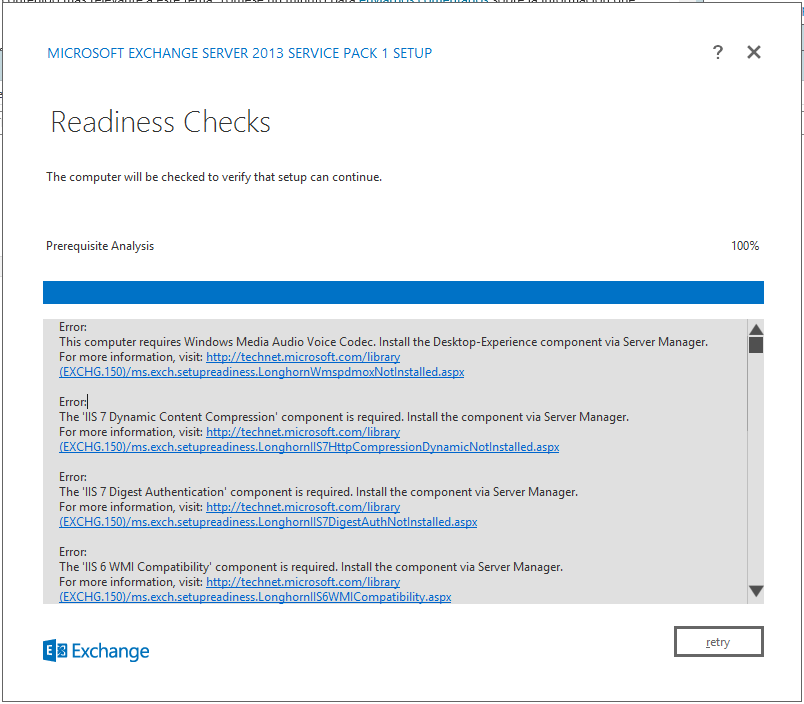
Fear not, most of them can easily go away with the simple execution of a Powershell command. I used to go line by line clicking on each link figuring out what I needed to do… really a huge waste of time.
First off, if you need to update / prepare your AD schema you will need theRemote Tools Administration Pack , If you don’t you will encounter issues like:
PS C:\Ex13SP1> .\setup /prepareAD /IAcceptExchangeServerLicenseTerms Welcome to Microsoft Exchange Server 2013 Service Pack 1 Unattended Setup Copying Files… File copy complete. Setup will now collect additional information needed for installation. Performing Microsoft Exchange Server Prerequisite Check Prerequisite Analysis COMPLETED Configuring Microsoft Exchange Server Organization Preparation FAILED The following error was generated when “$error.Clear(); install-ExchangeSchema -LdapFileName ($roleInstallPath + “Setup\Data”+$RoleSchemaPrefix + “schema0.ldf”) ” was run: “There was an error while running ‘ldifde.exe’ to import the schema file ‘C:\Windows\Temp\ExchangeSetup\Setup \Data\PostExchange2003_schema0.ldf’. The error code is: 8224. More details can be found in the error file: ‘C:\Users\UserNAme\AppData\Local\Temp\ldif.err’”. The Exchange Server setup operation didn’t complete. More details can be found in ExchangeSetup.log located in the
:\ExchangeSetupLogs folder.
Entry DN: CN=ms-Exch-ELC-Expiry-Action,CN=Schema,CN=Configuration,DC=HQ,DC=CloudIngenium,DC=com Add error on entry starting on line 1: Operations Error The server side error is: 0x21a2 The FSMO role ownership could not be verified because its directory partition has not replicated successfully with at least one replication partner. The extended server error is: 000021A2: SvcErr: DSID-030A0B6B, problem 5012 (DIR_ERROR), data 8610 An error has occurred in the program
Executing: install-ExchangeSchema -LdapFileName ($roleInstallPath + “Setup\Data”+$RoleSchemaPrefix + “schema0.ldf”) Active Directory session settings for ‘Install-ExchangeSchema’ are: View Entire Forest: ‘True’, Configuration Domain Controller: ‘DC01.CloudIngenium.com’, Preferred Global Catalog: ‘DC01.CloudIngenium.com’, Preferred Domain Controllers: ’{ DC01.CloudIngenium.com }’ User specified parameters: -LdapFileName:‘Setup\Data\PostExchange2003_schema0.ldf’ Beginning processing install-ExchangeSchema Running <C:\Windows\system32\ldifde.exe> with arguments <-i -s “DC01.CloudIngenium.com” -f “C:\Windows\Temp\ExchangeSetup\Setup\Data\PostExchange2003_schema0.ldf” -j “C:\Users\UserName\AppData\Local\Temp” -c "
" “CN=Schema,CN=Configuration,DC=”>. Process C:\Windows\system32\ldifde.exe finished with exit code 8224. There was an error while running ‘ldifde.exe’ to import the schema file ‘C:\Windows\Temp\ExchangeSetup\Setup\Data\PostExchange2003_schema0.ldf’. The error code is: 8224. More details can be found in the error file: ‘C:\Users\\AppData\Local\Temp\ldif.err’ There was an error while running ‘ldifde.exe’ to import the schema file ‘C:\Windows\Temp\ExchangeSetup\Setup\Data\PostExchange2003_schema0.ldf’. The error code is: 8224. More details can be found in the error file: ‘C:\Users\\AppData\Local\Temp\ldif.err’ Ending processing install-ExchangeSchema The following 1 error(s) occurred during task execution: 0. ErrorRecord: There was an error while running ‘ldifde.exe’ to import the schema file ‘C:\Windows\Temp\ExchangeSetup\Setup\Data\PostExchange2003_schema0.ldf’. The error code is: 8224. More details can be found in the error file: ‘C:\Users\\AppData\Local\Temp\ldif.err’ 0. ErrorRecord: Microsoft.Exchange.Configuration.Tasks.TaskException: There was an error while running ‘ldifde.exe’ to import the schema file ‘C:\Windows\Temp\ExchangeSetup\Setup\Data\PostExchange2003_schema0.ldf’. The error code is: 8224. More details can be found in the error file: ‘C:\Users\\AppData\Local\Temp\ldif.err’ at Microsoft.Exchange.Configuration.Tasks.Task.ThrowError(Exception exception, ErrorCategory errorCategory, Object target, String helpUrl) at Microsoft.Exchange.Management.Deployment.InstallExchangeSchema.ImportSchemaFile(String schemaMasterServer, String schemaFilePath, String macroName, String macroValue, WriteVerboseDelegate writeVerbose) at Microsoft.Exchange.Management.Deployment.InstallExchangeSchema.InternalProcessRecord() at Microsoft.Exchange.Configuration.Tasks.Task.ProcessRecord() The following error was generated when “$error.Clear(); install-ExchangeSchema -LdapFileName ($roleInstallPath + “Setup\Data”+$RoleSchemaPrefix + “schema0.ldf”) ” was run: “There was an error while running ‘ldifde.exe’ to import the schema file ‘C:\Windows\Temp\ExchangeSetup\Setup\Data\PostExchange2003_schema0.ldf’. The error code is: 8224. More details can be found in the error file: ‘C:\Users\\AppData\Local\Temp\ldif.err’”. There was an error while running ‘ldifde.exe’ to import the schema file ‘C:\Windows\Temp\ExchangeSetup\Setup\Data\PostExchange2003_schema0.ldf’. The error code is: 8224. More details can be found in the error file: ‘C:\Users\\AppData\Local\Temp\ldif.err’ Id=ADSchemaComponent___64bd6943575045fa880b92893321a2d5 Component=EXCHANGE14:\Current\Release\Shared\Datacenter\Setup Setup is stopping now because of one or more critical errors. Finished executing component tasks. Ending processing Install-ExchangeOrganization CurrentResult console.ProcessRunInternal:198: 1 CurrentResult launcherbase.maincore:90: 1 CurrentResult console.startmain:52: 1 CurrentResult SetupLauncherHelper.loadassembly:452: 1 The Exchange Server setup operation didn’t complete. More details can be found in ExchangeSetup.log located in the :\ExchangeSetupLogs folder.
To avoid or resolve this issues, install the Remote Administration Tools Pack :
- Open Windows PowerShell.
- Install the Remote Tools Administration Pack.
-
On a Windows Server 2012 R2 or Windows Server 2012 computer, run the following command. Install-WindowsFeature RSAT-ADDS
-
On a Windows Server 2008 R2 SP1 computer, run the following command. Add-WindowsFeature RSAT-ADDS
-
You need to install those tools on the machine were you will be performing the AD schema update / preparation.
The next step is to install the necessary prerequisites like IIS on your Exchange Server: Do the following to install the required Windows roles and features :
-
Open Windows PowerShell.
-
Run the following command to install the required Windows components. Install-WindowsFeature AS-HTTP-Activation, Desktop-Experience, NET-Framework-45-Features, RPC-over-HTTP-proxy, RSAT-Clustering, RSAT-Clustering-CmdInterface, RSAT-Clustering-Mgmt, RSAT-Clustering-PowerShell, Web-Mgmt-Console, WAS-Process-Model, Web-Asp-Net45, Web-Basic-Auth, Web-Client-Auth, Web-Digest-Auth, Web-Dir-Browsing, Web-Dyn-Compression, Web-Http-Errors, Web-Http-Logging, Web-Http-Redirect, Web-Http-Tracing, Web-ISAPI-Ext, Web-ISAPI-Filter, Web-Lgcy-Mgmt-Console, Web-Metabase, Web-Mgmt-Console, Web-Mgmt-Service, Web-Net-Ext45, Web-Request-Monitor, Web-Server, Web-Stat-Compression, Web-Static-Content, Web-Windows-Auth, Web-WMI, Windows-Identity-Foundation
You will be indicated to restart your server after this. Do so to continue.
After you’ve installed the operating system roles and features, install (http://go.microsoft.com/fwlink/p/?linkId=258269).
Error: This computer requires the Microsoft Unified Communications Managed API 4.0, Core Runtime 64-bit. Please install the software from http://go.microsoft.com/fwlink/?LinkId=260990. For more information, visit: http://technet.microsoft.com/library(EXCHG.150)/ms.exch.setupreadiness.UcmaRedistMsi.aspx
Once you have installed this you should be good to go: (http://kx.cloudingenium.com/wp-content/uploads/sites/3/2014/03/Kx.CloudIngenium.com-How-to-Install-Exchange-Server-2013-SP1-Progressing.png)](http://kx.cloudingenium.com/wp-content/uploads/sites/3/2014/03/Kx.CloudIngenium.com-How-to-Install-Exchange-Server-2013-SP1-Progressing.png)
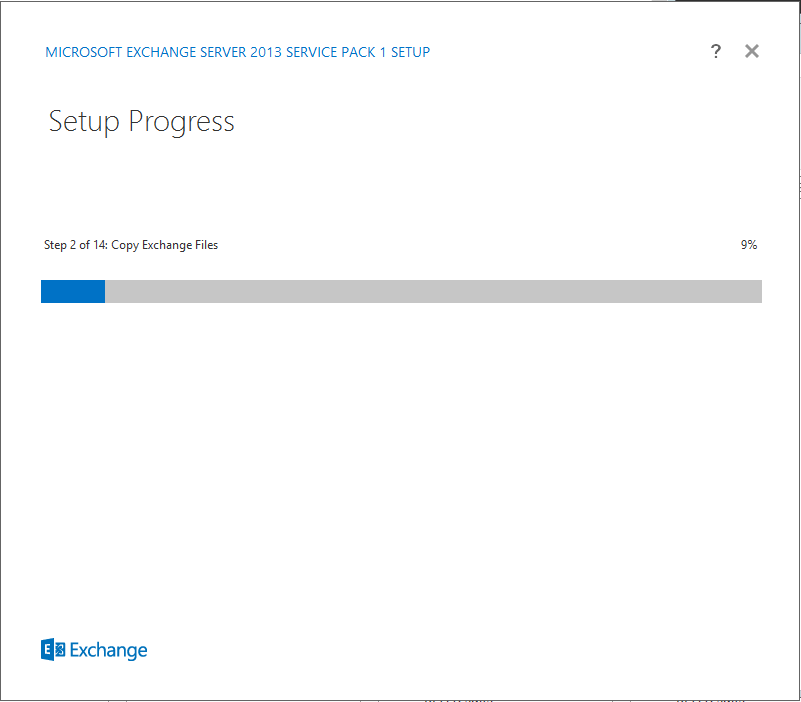
And you’re done!
(http://img.zemanta.com/zemified_h.png?x-id=435d5472-95a0-47c1-8f28-3ccca46a60b5)](http://www.zemanta.com/?px “Enhanced by Zemanta”)

Summary
You’ve successfully learned install exchange server 2013 sp1. If you run into any issues, double-check the prerequisites and ensure your Exchange 2013 environment is properly configured.
Related Articles
- [Como: Resolver el error ](/como-resolver-el-error-checkprereqs-configuracion-de-la-relacion-de-la-organizacion-el-identificador-de-organizacion-federada-para-la-confianza-de-federacion-esta-deshabilitado-habilitelo-y-vuelva/)
- How to Configure TMG for Office 365 (Exchange) Hybrid deployments
- Exchange 2013: How to completely remove all settings from Active Directory
- Exchange Server 2013: HTTP 500 Errors for ECP and OWA (Fresh Install)