Note: This article was originally published in 2013. Some steps, commands, or software versions may have changed. Check the current Authentication documentation for the latest information.
In this step-by-step guide, you’ll learn enable kerberos authentication on a sharepoint 2013 server.
Prerequisites
Before you begin, make sure you have:
- SharePoint Server 2013 or later
- Farm administrator or site collection admin access
- PowerShell with SharePoint snap-in
How to: Enable Kerberos Authentication on a SharePoint 2013 Server
So… As I was installing SharePoint 2013 it asked me if I wanted NTLM or Kerberos authentication, and indicated that Kerberos was the way to go. Little caveat: You might need to do some additional configuration. After doing some research it seems their definition of “little” and mine is a “little” different. Regardless, it seems like an elaborated process so I found a site that has done a great job providing step by step instructions and I would recommend:
http://blog.blksthl.com/2012/09/26/the-first-kerberos-guide-for-sharepoint-2013-technicians/
Below is a copy of the content. I do this as it often happens, sites go down and the information is lost. You should try to visit the link above first as the information there probably gets frequently updated but if for some reason the link becomes broken below is the content found there as of the date this post was first published:
This is obviously an extension to ‘(http://blog.blksthl.com/2012/09/26/the-final-kerberos-guide-for-sharepoint-technicians/ “The final Kerberos guide for SharePoint technicians”)‘ published previously. As I was making that post and collecting material and Pictures, verifying the functionality, I was beginning to wonder if such a guide would be applicable in the same way to SharePoint 2013 as it is to SharePoint 2010, after some quick research I found out that it is. Using the SharePoint 2013 preview installed on Windows Server 2008 R2 with a 2008 R2 Active Directory and SQL Server 2008 R2, the steps are the same (almost). (http://technology.bauzas.com/files/2013/03/cerberosx1.pngw595)](http://blksthl.files.wordpress.com/2012/09/cerberosx1.png) (Herakles and Kerberos) I came upon a few ‘snags’ that took me a while to figure out, but part from that, all is similar to how it is in SharePoint 2010. So, good for me, I only have to update Everything, not re-learn the whole thing! As help in the task of writing this post, I had nothing…its still pretty empty for SharePoint 2013 on the topic of Kerberos and authentication (a few references added at the bottom section of this post), no doubt that will change as we get closer to launch but today, it was a void waiting to be filled. So, take it as is, this is built solely upon the preview bits. Use the 2010: (http://www.microsoft.com/en-us/download/details.aspx?id=23176 “Configuring Kerberos Authentication for Microsoft SharePoint 2010 Products”)(242 pages) as reference, most of it is still valid. Ok, enough talk, lets get down to business: ‘The first Kerberos guide for SharePoint 2013 technicians’ This time, I will try and get back later and add a scenario involving Windows Server 2012 and SQL Server 2012. Not that the SQL server will make much or any difference here, but the server environment will. Perhaps I’ll even have a brand new AD to work with based on 2012. Scenario 1 – Basic Kerberos authentication to SharePoint 2013 site on default port 80 with a single SharePoint Web Server(Windows Server 2008 R2) from Windows 7/2008R2, IE 9. (using Basic delegation/Unconstrained delegation) (This guide assumes that a normal NTLM authentication to the same Web Application with the same user has been verified, by adding this line I’m among other things taking AAM and site permissions out of the equation. These things have to work before attempting to use this guide) Note: To perform some of these procedures, you must be a member of the Domain Admins group or the Enterprise Admins group in Active Directory and you have to be a member of the Farm Administrators Group in SharePoint, or you must have been delegated the appropriate authorities. As a security best practice, consider using ‘Run as’ when applicable to perform these procedures.
Checklist: Step Summary 1. Name Resolution An entry for the Web Applications URL must exist in either DNS or in the clients hosts file. 2. Service Principal Names HTTP SPN’s must be created for the Web Application URL(s) and its Application Pool service account. 3. Delegation The SharePoint Web Server must be ‘Trusted for delegation’ in Active Directory. (Note added 2012-12-08) 4. Authentication Provider The Web Applications Authentication provider must be set toAuthentication type: WindowsIIS Authentication setting: Integrated Windows authentication/Negotiate(Kerberos) 5. Verification of functionality(IMPORTANT!) Klist.exe on client must have a HTTP ticket for URL and User accountSecurity log on SharePoint Web Server must have event ID 4624 with user and kerberos. (If Kerberos fails NTLM authentication will be used!) (http://blog.blksthl.com/2012/09/26/the-first-kerberos-guide-for-sharepoint-2013-technicians/#step6) If you do need assistance on configuring ALternate Access Mappings or https/SSL, use any of these links: - (http://blog.blksthl.com/2012/12/03/a-guide-to-alternate-access-mappings-basics-in-sharepoint-2013/) - (http://blog.blksthl.com/2012/12/20/a-guide-to-https-and-secure-sockets-layer-in-sharepoint-2013/) -(http://gallery.technet.microsoft.com/The-final-guide-to-551bd75b/file/68306/1/The%20final%20guide%20to%20Alternate%20Access%20Mappings.pdf) (Free Download) Step 1 Name Resolution There are two ways to do this, one excellent and one less excellent, the lesser of the two is really only ‘allowed’ for developing or testing purposes, but it exists and should be taken into consideration. Testing is also something that you will want to do here, and the less modifications you must do that requires a service down or a (Service Management) change order at an early stage, the better. Use Hosts for testing, then DNS in production. DNS Make sure that the URL of the Web Application has a A-Record in DNS, if not, you need to create it. A server that is joined to an Active Directory Domain gets a A-record created automatically, but verify that it is there. Create a A-Record in DNS using the following: 1.1 Open DNS Management in Administrative Tools on a DNS server. (http://technology.bauzas.com/files/2013/03/kerbdns1x.pngw595)](http://blksthl.files.wordpress.com/2012/09/kerbdns1x.png) 1.2 Expand forward lookup zones container. (http://technology.bauzas.com/files/2013/03/kerbdns6x.pngw595)](http://blksthl.files.wordpress.com/2012/09/kerbdns6x.png) 1.3 Right click on the zone (domain name) and click on new host (A or AAAA). (http://technology.bauzas.com/files/2013/03/kerbdns5x.pngw595)](http://blksthl.files.wordpress.com/2012/09/kerbdns5x.png) (http://technology.bauzas.com/files/2013/03/kerbdns4.pngw595)](http://blksthl.files.wordpress.com/2012/09/kerbdns4.png) 1.4 Type in the name of the record, this is the URL of the Web Application (minus the domain part in a FQDN) and type in the IP address of the SharePoint 2013 Web Server (http://technology.bauzas.com/files/2013/03/kerb2013dns0x.pngw595)](http://blksthl.files.wordpress.com/2012/09/kerb2013dns0x.png) 1.5 Click on ‘Add Host’ 1.6 Click on ‘Done’ 1.7 You will see this verification dialog: (http://technology.bauzas.com/files/2013/03/kerb2013dns1x.pngw595)](http://blksthl.files.wordpress.com/2012/09/kerb2013dns1x.png) 1.8 Verify that the record has been created in the right pane. (http://technology.bauzas.com/files/2013/03/kerb2013dns2x.pngw595)](http://blksthl.files.wordpress.com/2012/09/kerb2013dns2x.png) 1.8 Just to be sure, do a flush of the DNS cache, to do this, type: Ipconfig -flushdns (hit enter) (http://technology.bauzas.com/files/2013/03/kerb2013dns25x.pngw595amph115)](http://blksthl.files.wordpress.com/2012/09/kerb2013dns25x.png) 1.9 In a Command Prompt, ping the Web Application URL. (http://technology.bauzas.com/files/2013/03/kerb2013dns3x.pngw595amph198)](http://blksthl.files.wordpress.com/2012/09/kerb2013dns3x.png) 1.10 You are now done with step 1 , Name Resolution. Move on to step 2. Service Principal Name(SPN). Note: A known issue exists with some clients (IE7 and IE8 included) that causes kerberos authentication to fail with the use of DNS alias instead of an A-Record.
Hosts(not recommended method) 1.x1 Locate the hosts file on your client or server if this is what you are using as client. It is located in the following path: C:WindowsSystem32Driversetchosts. Use Notepad to open it(open notepad using right click and ‘Run as Administrator’ and you will be allowed to save the changes) 1.x2 At the bottom of the file, add a row with the following: IP-Address
hostname/FQDN - Example: 192.168.1.104 sharepoint2013 - Also add any FQDN’s needed, like in my example: 192.168.1.104 sharepoint2013.corp.balkestahl.se Note: Always end the last line with a Linefeed/Enter, else you may experience issues using the hosts file. (http://technology.bauzas.com/files/2013/03/kerbhostsx.pngw595amph405)](http://blksthl.files.wordpress.com/2012/09/kerbhostsx.png) 1.x3 Example of how the file could look above…Save the file using the same filename(hosts only, no extension) You are now done with step 1 , Name Resolution. Move on to step 2. Service Principal Name(SPN). Step 2 Service Principal Name(SPN) Note: To perform these procedures, you must have membership in Domain Admins, Enterprise Admins, or you must have been delegated the appropriate authority. For information on delegating the permissions to modify SPNs, see (http://technet.microsoft.com/sv-se/library/cc772895\(v=ws.10\).aspx).
Note: To use setspn, you must run the setspn command from an elevated command prompt. To open an elevated command prompt, click Start, right-click Command Prompt, and then click ‘Run as administrator’.
When creating or setting up your SPN’s, you need some basic information first, as you will be creating HTTP SPN’s you need a URL and a Service account name. If the SharePoint Web Application has both a NetBIOS name and an FQDN, then you need to create separate SPN’s for both. 2.1 Start by opening a Command Prompt ‘Running as administrator’ (See note at the start of this step 2) (http://technology.bauzas.com/files/2013/03/kerbsetspn05x.pngw595)](http://blksthl.files.wordpress.com/2012/09/kerbsetspn05x.png) 2.2 Next, list all SPN already in Place for the Service Account, type: setSPN -L domainserviceaccount (hit enter) or without the domain name setSPN -L serviceaccount (hit enter) Wait for it… (http://technology.bauzas.com/files/2013/03/kerbsetspn2x.pngw595amph162)](http://blksthl.files.wordpress.com/2012/09/kerbsetspn2x.png) Most likely, you get back nothing. This is ok. If you do get some registered SPN’s back, just make sure that they are not the same as the ones you are about to add, if they aren’t they you can leave them be. 2.3 Next, we create our own SPN’s for the service account paired with the Web Application and SPN type, to create this SPN type: Note: Do not configure service principal names with https even if the web application uses SSL
setspn -S HTTP/mywebappurl domainserviceaccount (hit enter)Note: HTTP can be upper or lowercase, does not matter. (http://technology.bauzas.com/files/2013/03/kerbspn1x.pngw595amph165)](http://blksthl.files.wordpress.com/2012/09/kerbspn1x.png) 2.5 Now we also have to add an SPN for the FQDN, type: setspn -S HTTP/mywebappurl.domain.com domainserviceaccount (hit enter) (http://technology.bauzas.com/files/2013/03/kerbspn3x.pngw595amph147)](http://blksthl.files.wordpress.com/2012/09/kerbspn3x.png) 2.6 Listing the SPN’s now should list one additional SPN, type: setspn -L domainserviceaccount (hit enter) (http://technology.bauzas.com/files/2013/03/kerbspn4x.pngw595amph134)](http://blksthl.files.wordpress.com/2012/09/kerbspn4x.png) If Everything has gone well and you had no previous SPN’s created from this service account, then the result from the command will be: HTTP/mywebappurl HTTP/mywebappurl.domain.com Note: You see in the Picture in addition to the 2013 SPN’s, my SPN’s created for the SharePoint 2010 server, that farm uses the same service account, corpspwebapp and thus the SPN’s are still registered to it. Those two extra SPN’s do not in any way affect this service. Leave them be and we will be fine. The necessary SPN’s have now been created successfully and the service will be able to request tickets in your name. Note: Using the -S parameter with setspn when creating an SPN will check for duplicates before creating a new one, thus eliminating the risk of duplicate SPN’s, which would cause Kerberos to fail.
You are now done with step 2 , Service Principal Name(SPN). Move on to step 3. Trust for delegation. - Step 3 Trust for delegation Note: To perform this procedure, you must be a member of the Domain Admins group or the Enterprise Admins group in Active Directory, or you must have been delegated the appropriate authority. As a security best practice, consider using Run as to perform this procedure.
By default, no server is trusted for delegation, meaning that a service on a server in the Active Directory, cannot act on a user’s behalf, basically this means that a service if trusted for delegation, can impersonate a user and request a Kerberos ticket in the users name. (added 2012-12-08) Note: Step 3 can be skipped if you only want to authenticate your users. Delegation is only needed if you are planning to access external or ‘second hand’ datasources, such as an RSS feed, Reporting Services or any other service external to the SharePoint server, that would require the users authentication to be delegated. Configuring delegation together with Kerberos will allow for ‘double hop’ scenarios. (Thanks Spencer Harbar for pointing this out)
Change this setting in Active Directory using the following: 3.1 Open Active Directory Users and Computers. 3.2 In the console tree, click Computers. (Or the appropriate OU where your SharePoint Web Server resides) (http://technology.bauzas.com/files/2013/03/kerbdelegate1x.pngw595)](http://blksthl.files.wordpress.com/2012/09/kerbdelegate1x.png) 3.3 Right-click the computer you want to be trusted for delegation, and click Properties (http://technology.bauzas.com/files/2013/03/kerbdelegate3x.pngw595)](http://blksthl.files.wordpress.com/2012/09/kerbdelegate3x.png) 3.4 On the Delegation tab, click ‘Trust this computer for delegation to any service (Kerberos only)’. (http://technology.bauzas.com/files/2013/03/kerbdelegate4x.pngw595)](http://blksthl.files.wordpress.com/2012/09/kerbdelegate4x.png) 3.5 Click OK. You are now done with step 3. Trust for delegation. Move on to step 4. Authentication Provider. (http://blog.blksthl.com/2012/09/26/the-first-kerberos-guide-for-sharepoint-2013-technicians/#Menu) - Step 4 Authentication Provider (Added 2012-12-11) Update: In response to several comments, the steps 4.18, 4.19 and 4.20 can be ignored, these steps are not required and can be disregarded. IIS will show a red warning but this is what SharePoint does and it works even with FBA enabled. So, if it works with FBA enabled, leave it on. See references section at the end of this post for a link to a really good explanation to how claims based authentication in SharePoint works.
Note: To perform this procedure, you must be a member of the SharePoint Farm Administrators group, or you must have been delegated the appropriate authority.
Note: If you are creating a new Web Application at this Point, simply select ‘Classic Mode Authentication’ as authentication and ‘Negotiate(Kerberos)’ as Authentication provider in the Security Configuration dialog during Web Application creation.
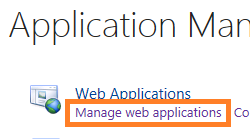
In order for the Web Application and SharePoint to use Kerberos instead of the default NTLM, we have to configure SharePoint to use just that. Unlike what many Think, there is no way to force SharePoint to use only Kerberos, what we have available is the option to use Kerberos if possible, else use NTLM. Don’t ask me why this is so, but this is what we have. However, if all of the Kerberos Components are configured correctly, this is what will be used for authentication at all times. So…the last configuration Before testing it all out…configure SharePoint to use Kerberos using the following: 4.1 In the Central Administration, go to ‘Application Management’ – ‘Manage Web Applications’ (http://technology.bauzas.com/files/2013/03/kerbca1x.pngw595)](http://blksthl.files.wordpress.com/2012/09/kerbca1x.png) (http://technology.bauzas.com/files/2013/03/kerbca2x.pngw595)](http://blksthl.files.wordpress.com/2012/09/kerbca2x.png) (http://technology.bauzas.com/files/2013/03/kerbca3x.pngw595)](http://blksthl.files.wordpress.com/2012/09/kerbca3x.png) 4.2 Select the Web Application you want to configure, and click on Authentication providers in the top ribbon. (http://technology.bauzas.com/files/2013/03/kerbca4x.pngw595amph119)](http://blksthl.files.wordpress.com/2012/09/kerbca4x.png) 4.3 In the ‘Authentication Providers’ dialog, click on the authentication provider you want to alter, usually its default. (http://technology.bauzas.com/files/2013/03/kerbca5x.pngw595amph153)](http://blksthl.files.wordpress.com/2012/09/kerbca5x.png) 4.4 In the ‘Edit Authentication’ dialog, verify that ‘Claims Authentication Type’ is set to: ‘Enable Windows Authentication’ and ‘Integrated Windows authentication’ In the dropdown, select ‘Negotiate (Kerberos)’. (http://technology.bauzas.com/files/2013/03/kerbauthprov1x.pngw595amph390)](http://blksthl.files.wordpress.com/2012/09/kerbauthprov1x.png) 4.5 Scroll down the dialog to ‘Save’ / ’Close’. Press Save and wait…you will not see any progress… (http://technology.bauzas.com/files/2013/03/kerbauthprov2x.pngw595amph139)](http://blksthl.files.wordpress.com/2012/09/kerbauthprov2x.png) 4.6 Sit here until you feel that you have waited long enough and that the save MUST be done. 4.7 Click on Cancel(?!) You have now made the modifications needed in SharePoint for Kerberos authentication to function, now we have to verify that the Changes has been made to IIS by SharePoint. To verify the IIS Web Site Authentication settings, follow these steps: 4.8 In Internet Information Services (IIS) Manager, locate the Web Application under ‘Sites’. (http://technology.bauzas.com/files/2013/03/kerbiisextra1x.pngw595)](http://blksthl.files.wordpress.com/2012/09/kerbiisextra1x.png) 4.9 Select the Web Application and in the middle pane under the heading ‘IIS’, locate ‘Authentication’ (http://technology.bauzas.com/files/2013/03/kerbiis1.pngw595)](http://blksthl.files.wordpress.com/2012/09/kerbiis1.png) 4.10 Select the ‘Authentication’ Icon and in the right ‘Actions’ pane, clikc on ‘Open Feature’. (http://technology.bauzas.com/files/2013/03/kerbiis2-2x.pngw595)](http://blksthl.files.wordpress.com/2012/09/kerbiis2-2x.png) 4.11 In the Authentication dialog, select Windows Authentication (usually at the bottom). (http://technology.bauzas.com/files/2013/03/kerbiis1-3x.pngw595)](http://blksthl.files.wordpress.com/2012/09/kerbiis1-3x.png) 4.12 Click on ‘Providers’ in the right ‘Actions’ pane. (http://technology.bauzas.com/files/2013/03/kerbiis5x1.pngw595)](http://blksthl.files.wordpress.com/2012/09/kerbiis5x1.png) 4.13 Verify that ‘Negotiate’ and ‘NTLM’ are the only ones listed and that they are listed in that order, ‘Negotiate’ at the top. (http://technology.bauzas.com/files/2013/03/kerbiis6x.pngw595)](http://blksthl.files.wordpress.com/2012/09/kerbiis6x.png) 4.14 Click Cancel and then again in the right ‘Actions’ pane click on ‘Advanced Settings’. (http://technology.bauzas.com/files/2013/03/kerbiis7x.pngw595)](http://blksthl.files.wordpress.com/2012/09/kerbiis7x.png) 4.15 Verify in the ‘Advanced Settings’ dialog that ‘Extended Protection’ is ‘Off’ and that ‘Enable Kernel-mode authentication’ is unchecked. (http://technology.bauzas.com/files/2013/03/kerbiis8x.pngw595)](http://blksthl.files.wordpress.com/2012/09/kerbiis8x.png) 4.16 Click Cancel. 4.17 IIS will warn you that this is disabled, but SharePoint disables this setting because of a ‘feature’ in IE8 that may prevent them from connecting. Do not follow their advice this time… (http://technology.bauzas.com/files/2013/03/kerbiis4x.pngw595)](http://blksthl.files.wordpress.com/2012/09/kerbiis4x.png) 4.18 (DISREGARD THIS STEP - See note at beginning of step 4. added 2012-12-11) I noticed here as well, after some trial and error, that SharePoint 2013 for some reason enabled ‘Forms Authentication’ for the my Web Application in IIS, when both are enabled, you will never be able to access the site. (http://technology.bauzas.com/files/2013/03/kerbiis1x.pngw595)](http://blksthl.files.wordpress.com/2012/09/kerbiis1x.png) 4.19 (DISREGARD THIS STEP - See note at beginning of step 4. added 2012-12-11) I even got a Little error about it in the top-right pane: (http://technology.bauzas.com/files/2013/03/kerbiis2x.pngw595)](http://blksthl.files.wordpress.com/2012/09/kerbiis2x.png) 4.20 (DISREGARD THIS STEP - See note at beginning of step 4. added 2012-12-11) Important! Disable the ‘Forms Authentication’ if it is enabled: (http://technology.bauzas.com/files/2013/03/kerbiis3x.pngw595)](http://blksthl.files.wordpress.com/2012/09/kerbiis3x.png) 4.21 Exit Internet Information Services Manager. You are now done with step 4. Authentication Provider. Move on to step 5. Verification of functionality. Note: DO NOT make any Changes using the Internet Information Services Manager, if Changes need to be made, Always use the SharePoint Central Administration interface. Another way to make changes to SharePoint is PowerShell, which is also a recommended way if you really know what you are doing.
(http://blog.blksthl.com/2012/09/26/the-first-kerberos-guide-for-sharepoint-2013-technicians/#Menu) - Step 5 Verification of functionality Many Tools exist that can be used to verify that Kerberos authentication actually occurs, Tools such as NetMon(Network Monitor), WireShark, Fiddler, KerbTray and many more can be used for this step. I have however focused on two Tools that will be sufficient and that exists already in the Environment. I have chosen to focus on these two: Klist (Client) Security Log (Server) Klist (Klist is available on Windows server 2008 and later and on Windows 7 and later, for Windows Server 2003, see note at the end of this step) Before anything, Close down all open Internet Explorers or other browser sessions you have open. 5.1 On the client, start a command prompt as administrator (Right click, ‘Run as administrator’). (http://technology.bauzas.com/files/2013/03/kerbsetspn05x.pngw595)](http://blksthl.files.wordpress.com/2012/09/kerbsetspn05x.png) 5.2 Flush the DNS cache, type: Ipconfig -flushdns (hit enter) (http://technology.bauzas.com/files/2013/03/kerb2013dns25x.pngw595amph115)](http://blksthl.files.wordpress.com/2012/09/kerb2013dns25x.png) 5.3 List all tickets on the system, type: klist (hit enter) Note: this does not affect any other functionality on the client or server The tickets listed does not necessarily have anything to do with us at this point (SharePoint). 5.4 Now, we want to clean up this list so that we can see if a new ticket is granted to our user when logging on to SharePoint. Clear the list, type: klist purge (hit enter) Note: this does not affect any other functionality on the client or server In the prompt you will see: Deleting all tickets: Ticket(s) purged! (http://technology.bauzas.com/files/2013/03/kerbklist2x.pngw595amph121)](http://blksthl.files.wordpress.com/2012/09/kerbklist2x.png) 5.5 Try again listing all tickets, type: klist (hit enter) (http://technology.bauzas.com/files/2013/03/kerbklist5x.pngw595amph113)](http://blksthl.files.wordpress.com/2012/09/kerbklist5x.png) (http://technology.bauzas.com/files/2013/03/kerbklist5.pngw595)](http://blksthl.files.wordpress.com/2012/09/kerbklist5.png) This time the list should be empty. (if not, then some service has managed to connect again during the time from that you purged until you ran Klist again) 5.6 With an empty Kerberos ticket list, open up a new Internet Explorer session and go to the URL of the Web Application. 5.7 When authenticated and logged into the site, all loaded ok (http://technology.bauzas.com/files/2013/03/kerbloadsite3x.pngw595)](http://blksthl.files.wordpress.com/2012/09/kerbloadsite3x.png) 5.8 Switch back to the command prompt and again, type: klist (hit enter) Now, with Kerberos working, you will see two tickets, the most important one is the second ticket(#1) that contains: Client: (mailto:username@domain.com).com Server: HTTP/mywebappurl KerbTicket Encryption Type: And a few timestamps and similar stuff. This is good! (http://technology.bauzas.com/files/2013/03/kerbklist1x.pngw595amph328)](http://blksthl.files.wordpress.com/2012/09/kerbklist1x.png) If you see this ticket, things are working! Now, all we have to do is verify that it looks good on the Web Server as well. Close down the Command Prompt and move on to the next task in this guide, the security log. Note: For Windows Server 2003, KLIST is available as a free download in the Windows Server 2003 Resource Kit Tools. To obtain the tools, visit the following Microsoft Web site: (http://www.microsoft.com/downloads/details.aspx?familyid=9d467a69-57ff-4ae7-96ee-b18c4790cffd&displaylang=en “Klist for Windows Server 2003”)
Security Log Verify that the Web Server Authenticates the user using Kerberos using the following: 5.9 On the SharePoint Web Server, in Administrative Tools, open up Event Viewer. (http://technology.bauzas.com/files/2013/03/kerbevent1x.pngw595)](http://blksthl.files.wordpress.com/2012/09/kerbevent1x.png) 5.10 Expand the ‘Windows Logs’ container and locate the ‘Security’ Log. (http://technology.bauzas.com/files/2013/03/kerbevent2x.pngw595)](http://blksthl.files.wordpress.com/2012/09/kerbevent2x.png) 5.11 In the Security log, locate a recent event with the ID of 4624. This event should be a successful logon, and hold the security ID and accountname of the user that accessed the SharePoint Web Application using Internet Explorer on the client, and it should also state: Logon process: Kerberos Authentication Package: Kerberos. (http://technology.bauzas.com/files/2013/03/kerbevent1x1.pngw595amph712)](http://blksthl.files.wordpress.com/2012/09/kerbevent1x1.png) If you can verify that you do have this event, then you are done, Kerberos works! You are now done with step 5. Verification of functionality , there are no more steps from here… This means that if you have successfully completed all steps in this guide, you have managed to configure Kerberos for SharePoint 2013. CONGRATULATIONS!




Related articles
- (http://technology.bauzas.com/files/2013/03/150291550_80_80.jpg)](http://onpointwithsharepoint.wordpress.com/2013/03/06/configure-digest-authentication-for-a-claims-based-web-application-in-sharepoint-2013/)(http://onpointwithsharepoint.wordpress.com/2013/03/06/configure-digest-authentication-for-a-claims-based-web-application-in-sharepoint-2013/)

(http://img.zemanta.com/zemified_h.png?x-id=f25b783a-633b-4418-b179-e8d53101d3a2)](http://www.zemanta.com/?px “Enhanced by Zemanta”)

Summary
You’ve successfully learned enable kerberos authentication on a sharepoint 2013 server. If you run into any issues, double-check the prerequisites and ensure your Authentication environment is properly configured.